Are you frustrated with your Windows 11 WiFi connection constantly disconnecting? You’re not alone. Millions of users have reported this issue since Windows 11’s launch, and it can disrupt everything from work calls to streaming sessions. Whether it’s random drops, frequent disconnections, or the WiFi icon vanishing without warning, this problem can stem from software glitches, driver issues, hardware conflicts, or even router settings. In this comprehensive guide, we’ll dive deep into why your Windows 11 WiFi keeps disconnecting and provide step-by-step solutions to fix it for good. We’ll cover basic troubleshooting, advanced fixes, and preventive tips—all optimized for long-term stability.
By the end of this article, you’ll have a toolkit to resolve “Windows 11 WiFi disconnecting randomly,” “WiFi drops every few minutes on Windows 11,” and similar issues. Let’s get your connection rock-solid!
Understanding Why Windows 11 WiFi Keeps Disconnecting
Before jumping into fixes, it’s crucial to understand the root causes. Windows 11 introduced new networking features, but they’ve led to compatibility problems for some users. Common culprits include:
Outdated or Incompatible WiFi Drivers: Windows 11 might install generic drivers that don’t play well with your hardware, causing intermittent drops.
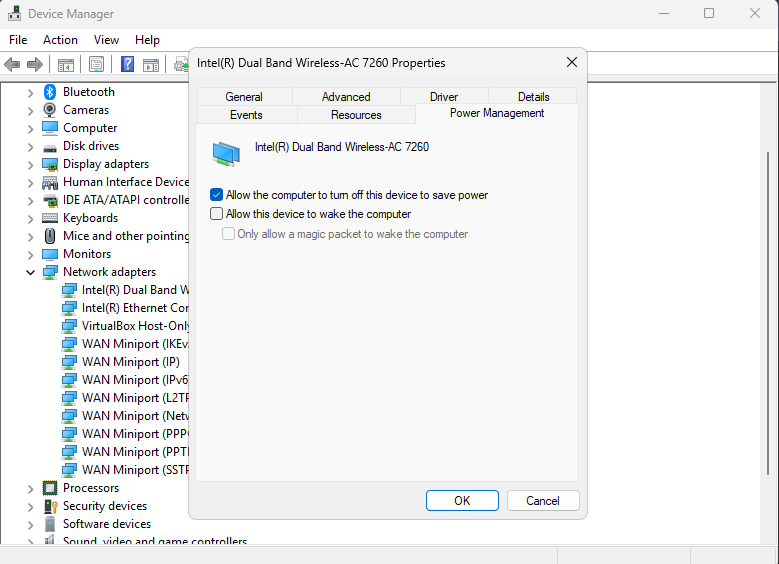
Power Management Settings: To save battery, Windows can throttle WiFi adapters, leading to disconnections during idle periods.
Network Interference: Overcrowded WiFi channels, nearby devices (like microwaves or cordless phones), or weak signals can trigger drops.
Software Conflicts: Antivirus programs, VPNs, or recent Windows updates might interfere with network stability.
Router or ISP Issues: Sometimes, the problem isn’t your PC—faulty router firmware, ISP outages, or DNS problems could be at play.
Hardware Problems: Faulty WiFi adapters, overheating, or even a dying router can mimic software issues.
IPv6 Conflicts: Windows 11’s default IPv6 support can clash with older networks, causing disconnects.
Background Processes: Resource-heavy apps or Windows services might overload your system, affecting WiFi.
If you’ve searched for “why does my WiFi keep disconnecting on Windows 11,” these are the top reasons based on user forums like Reddit, Microsoft Community, and tech blogs. Now, let’s fix it step by step.
Basic Troubleshooting: Quick Fixes for Windows 11 WiFi Disconnecting
Start with these simple steps—they resolve the issue for about 70% of users without needing advanced tech knowledge.
1. Restart Everything
It sounds cliché, but restarting often clears temporary glitches.
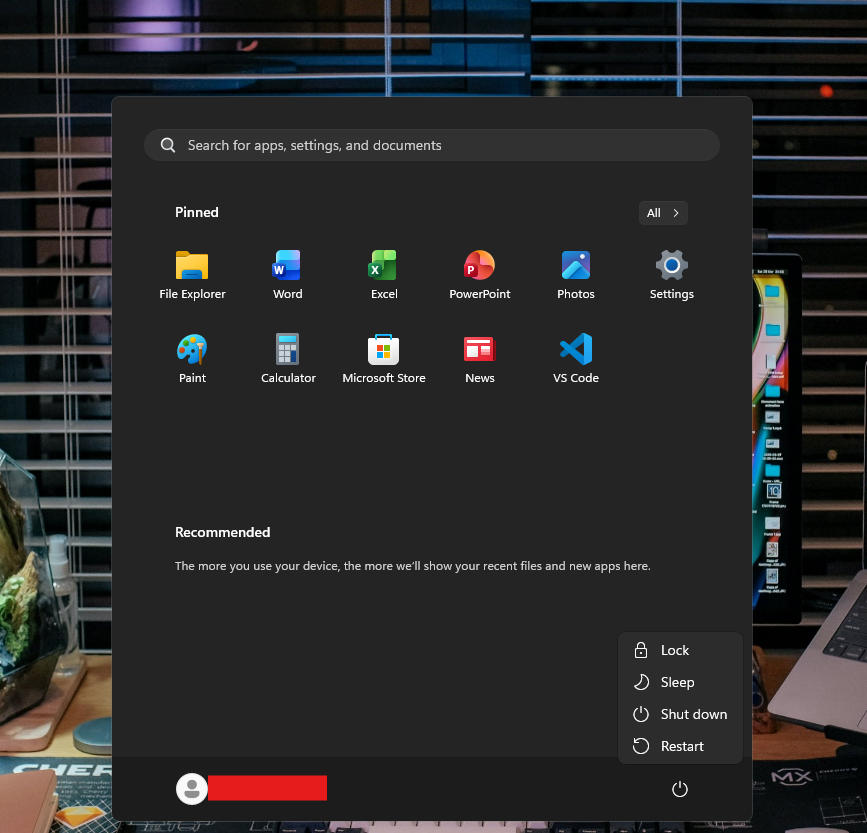
Restart Your PC: Go to Start > Power > Restart.
Restart Your Router/Modem: Unplug it for 30 seconds, then plug it back in. Wait for the lights to stabilize.
Why it works: This resets network stacks and clears cached data that might be causing drops.
2. Check Signal Strength and Interference
Move closer to your router to rule out weak signals.
Switch to a 5GHz band if available (it’s faster and less prone to interference than 2.4GHz).
Use the Windows Network Troubleshooter: Right-click the WiFi icon in the taskbar > Troubleshoot problems. Follow the prompts.
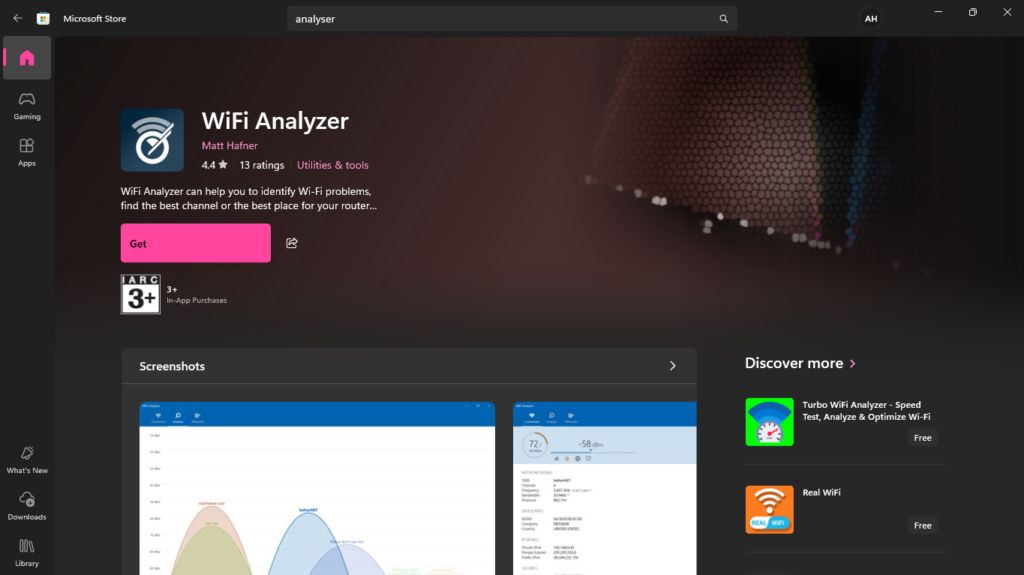
Pro Tip: Download a WiFi analyzer app (like WiFi Analyzer from the Microsoft Store) to scan for channel congestion and switch to a less crowded one via your router’s settings.
3. Forget and Reconnect to the Network
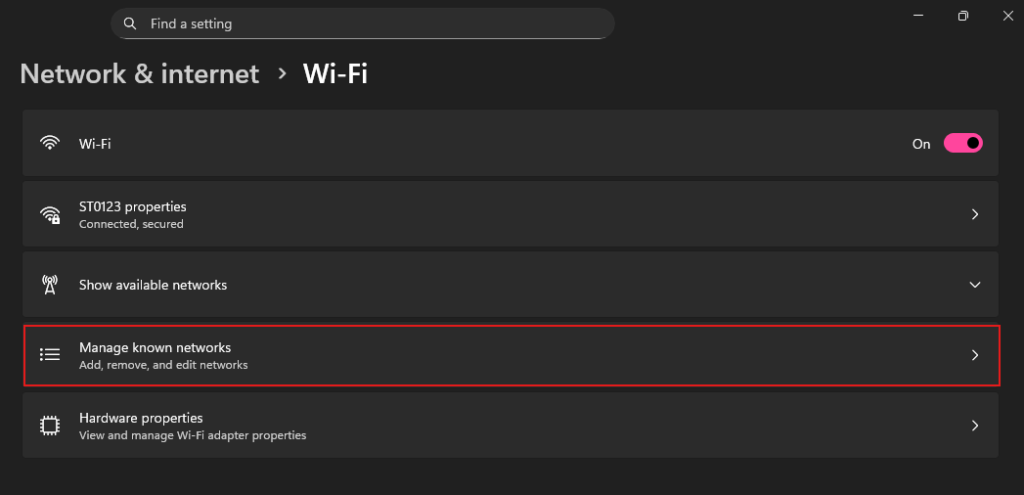
Right-click the WiFi icon > Open Network & Internet settings > WiFi > Manage known networks.
Select your network > Forget.
Reconnect by clicking the WiFi icon, selecting your network, and entering the password.
Detailed Explanation: This erases corrupted network profiles that Windows 11 sometimes creates, forcing a fresh connection.
4. Update Windows 11
Outdated OS versions are a common cause of WiFi instability.
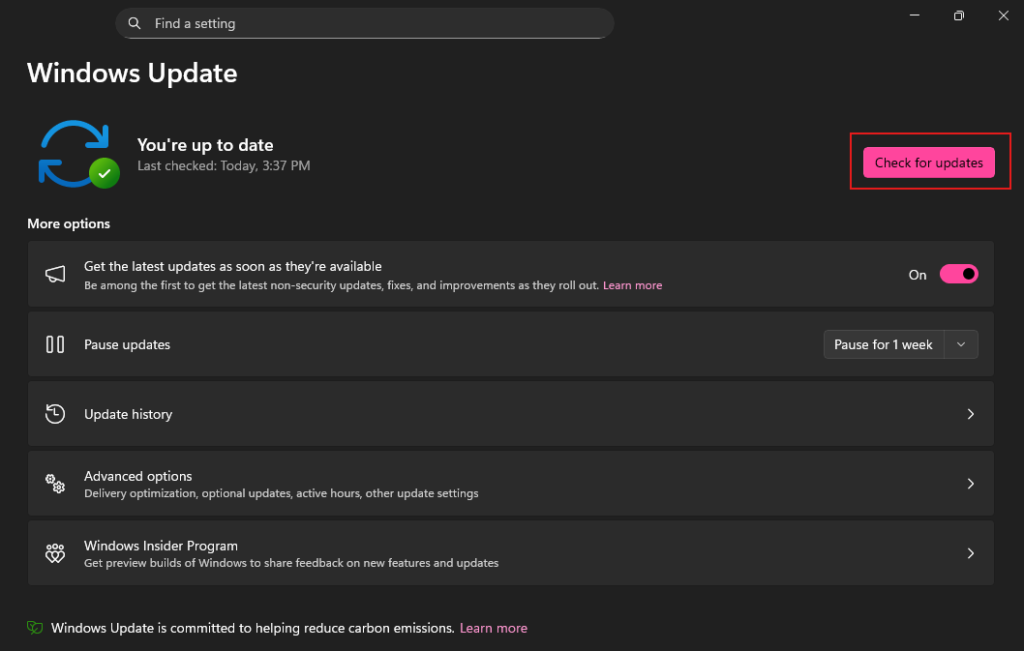
Go to Settings > Windows Update > Check for updates.
Install any available updates, including optional ones under Advanced options.
Restart your PC after installation.
SEO Note: If you’re dealing with “Windows 11 22H2 WiFi disconnecting,” check for the latest cumulative updates, as Microsoft often patches networking bugs.
If these don’t work, move to intermediate fixes.
Intermediate Fixes: Dive Deeper into Windows 11 WiFi Settings
If basic steps fail, tweak system settings for better stability.
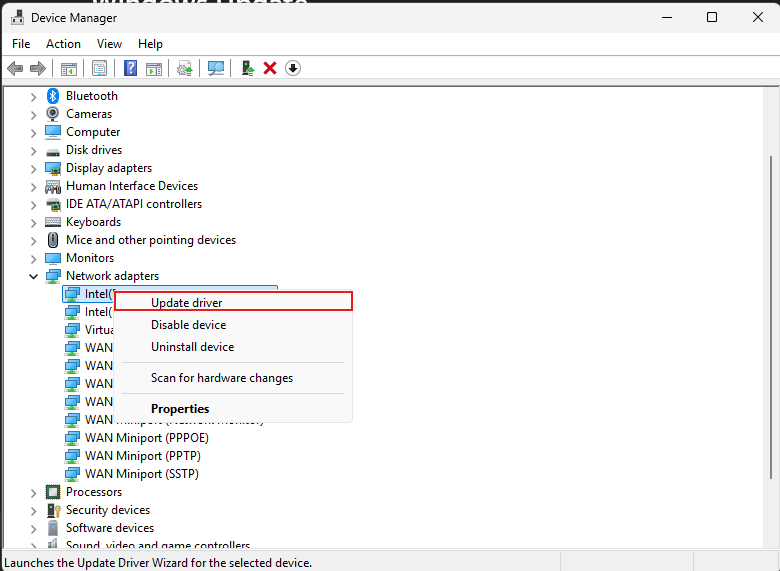
1. Update WiFi Drivers
Bad drivers are the #1 cause of “Windows 11 WiFi keeps dropping.”
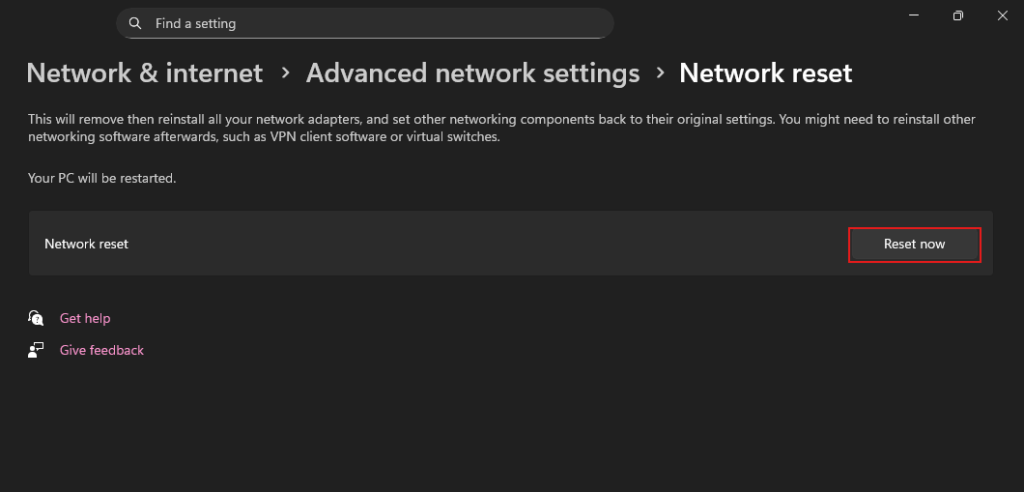
Caution: You’ll need to re-enter passwords for all networks, but it’s a powerful fix for corrupted stacks.
4. Change DNS Servers
DNS issues can cause apparent disconnections.
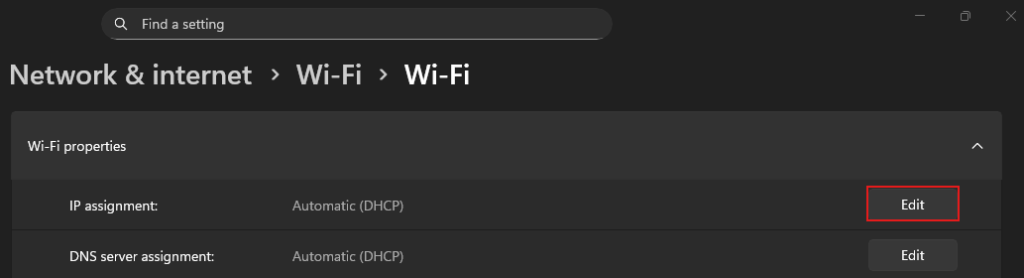
Settings > Network & Internet > WiFi > Hardware properties (for your network).
Edit IP assignment > Manual > Set IPv4 DNS to 8.8.8.8 (primary) and 8.8.4.4 (secondary) for Google DNS.
Or use 1.1.1.1 for Cloudflare.
Why It Helps: Faulty ISP DNS can lead to resolution failures, mimicking WiFi drops.
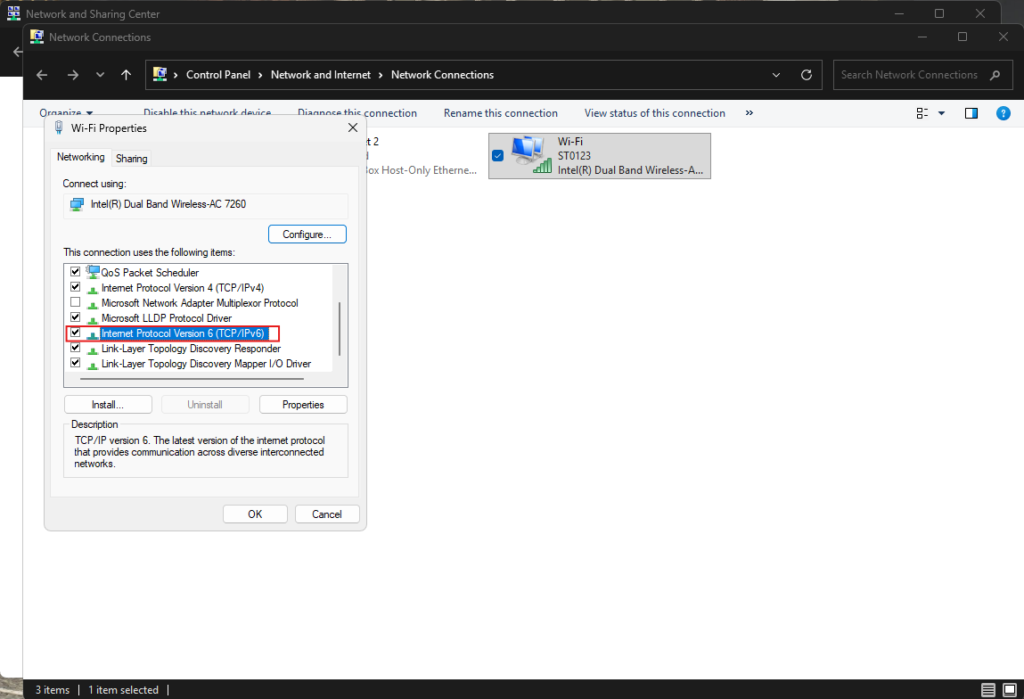
5. Disable IPv6
If your network doesn’t support it well:
In Network properties (as above), uncheck IPv6 > OK.
Restart your PC.
Test First: This isn’t always necessary, but it’s a quick toggle if IPv4-only works better.
Advanced Troubleshooting: For Persistent Windows 11 WiFi Disconnects
If the problem persists, it’s time for deeper dives. These steps require more comfort with tech.
1. Run SFC and DISM Scans
Corrupted system files can affect networking.
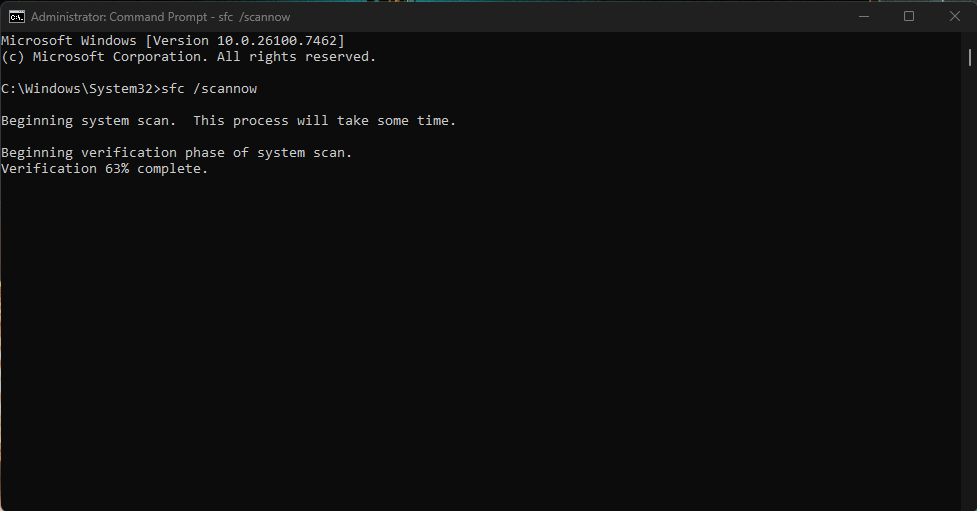
Open Command Prompt as Administrator (search for cmd > Run as admin).
Type sfc /scannow and hit Enter. Wait for completion.
Then, DISM /Online /Cleanup-Image /RestoreHealth.
Restart and test WiFi.
Full Details: SFC scans for file integrity, while DISM repairs the Windows image—great for post-update bugs.
2. Check for Software Conflicts
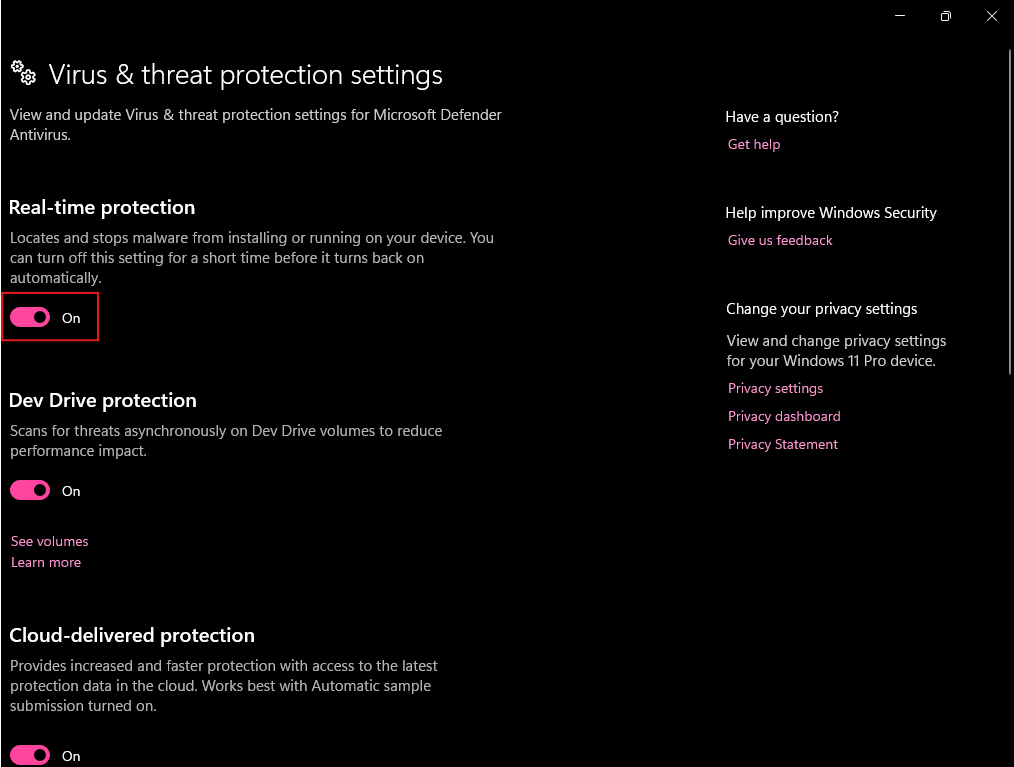
Temporarily disable antivirus (e.g., Windows Defender via Settings > Privacy & security > Windows Security > Virus & threat protection > Manage settings > Turn off Real-time protection).
Uninstall recent apps or VPNs via Settings > Apps > Installed apps.
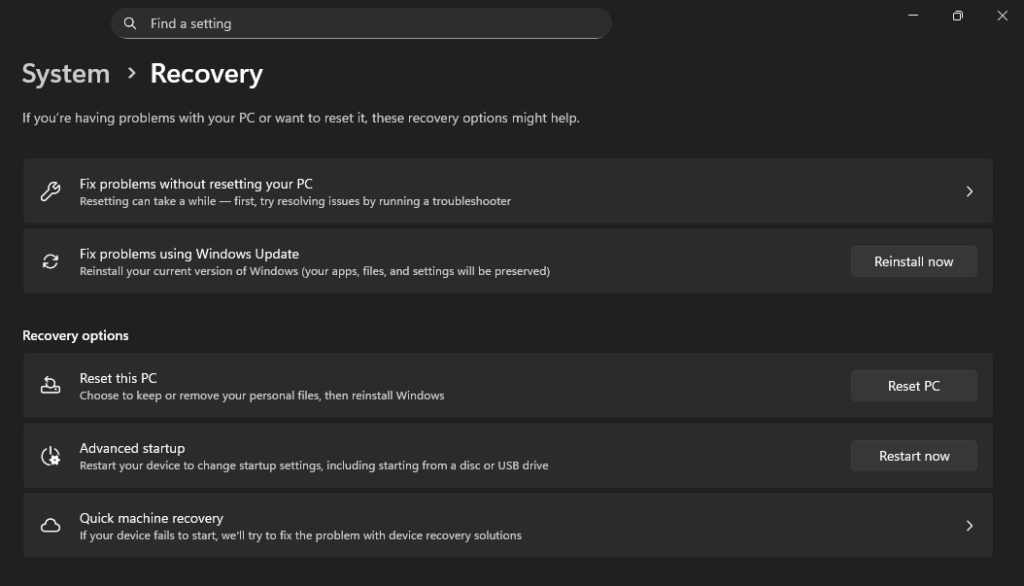
Boot in Safe Mode: Settings > System > Recovery > Advanced startup > Restart now > Troubleshoot > Advanced options > Startup Settings > Restart > Press 4 for Safe Mode with Networking.
If WiFi is stable in Safe Mode, a third-party app is the culprit.
3. Update Router Firmware
Log into your router’s admin page (usually 192.168.1.1 or similar—check manual).
Look for firmware updates in the Advanced or Administration section.
Pro Tip: Enable MU-MIMO and beamforming if available for better Windows 11 compatibility.
4. Test Hardware
Try a USB WiFi adapter to rule out internal hardware failure.
Connect via Ethernet—if stable, the issue is WiFi-specific.
Run hardware diagnostics: Download tools from your PC manufacturer (e.g., Dell SupportAssist).
5. Event Viewer Logs
For tech-savvy users:
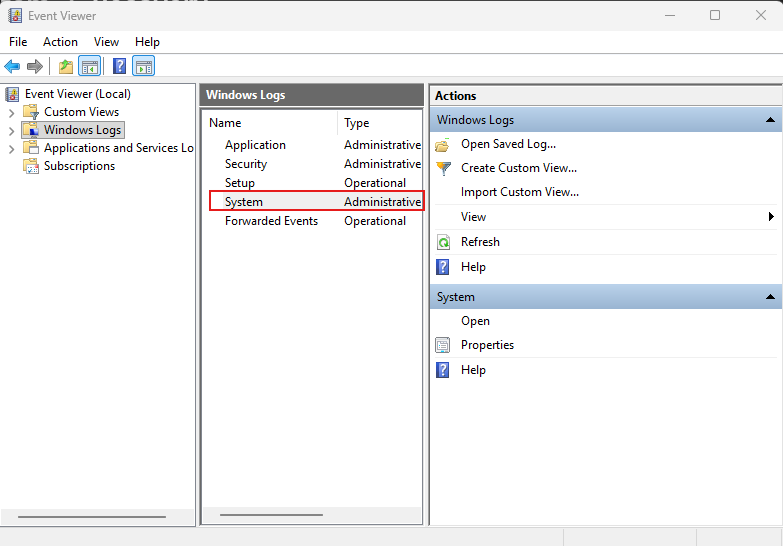
Search for Event Viewer > Windows Logs > System.
Filter for errors around disconnection times (look for WLAN-AutoConfig events).
Google the error codes for specific fixes.
If nothing works, consider a clean Windows 11 install via Settings > System > Recovery > Reset this PC > Keep my files.
Preventing Future Windows 11 WiFi Disconnects
Once fixed, keep it that way:
Regularly update drivers and Windows.
Use a mesh WiFi system for better coverage.
Schedule router restarts weekly.
Monitor with tools like NetSpot for ongoing interference.
Backup network settings before major updates.
FAQs: Common Questions About Windows 11 WiFi Issues
Why does WiFi disconnect only on Windows 11? Often due to driver incompatibilities post-upgrade.
Is there a permanent fix? Yes—updating drivers and tweaking power settings usually does it.
What if it’s a specific app causing drops? Use Task Manager to monitor and close suspects.
WiFi disconnects when laptop sleeps? Adjust sleep settings in Power & battery.
This guide covers everything from “fix Windows 11 WiFi keeps disconnecting 2026” to long-term prevention. If your issue persists, share details in the comments or visit Microsoft Support. Stay connected!