Physical Address
304 North Cardinal St.
Dorchester Center, MA 02124
Physical Address
304 North Cardinal St.
Dorchester Center, MA 02124


Are you frustrated with your Windows 11 PC slowing down, lagging during simple tasks, or freezing up at the worst moments? You’re not alone. Many users upgrading to or running Windows 11 experience these performance issues, especially on older hardware or systems cluttered with unnecessary files and programs. The good news is that most lagging and freezing problems can be fixed with some straightforward optimization tweaks—no need for advanced tech skills or expensive upgrades.
In this beginner-friendly guide, we’ll dive deep into why Windows 11 might be lagging or freezing and provide step-by-step optimization tips to get your system running smoothly again. Whether you’re a casual user browsing the web, a student juggling assignments, or a professional handling work apps, these tips are designed to be easy to follow. We’ll cover everything from basic maintenance to more targeted fixes, all optimized for search engines so you can find this help when you need it most. Let’s turn that sluggish PC into a speedy machine!
Before jumping into fixes, it’s helpful to know the root causes. Windows 11 is a powerful operating system with modern features like enhanced security, better multitasking, and AI integrations (think Copilot+ PCs in 2024 and beyond). However, these can strain your hardware if not managed properly. Common culprits include:
By addressing these, you can optimize Windows 11 for better performance. Remember, if issues persist after these tips, it might be time to consider hardware upgrades or professional help.
Start with a safety net to avoid any mishaps:
Now, let’s get into the optimization tips. We’ll start with the easiest ones.
Outdated software is one of the top reasons for lagging. Microsoft regularly releases updates that fix bugs, improve performance, and enhance security.
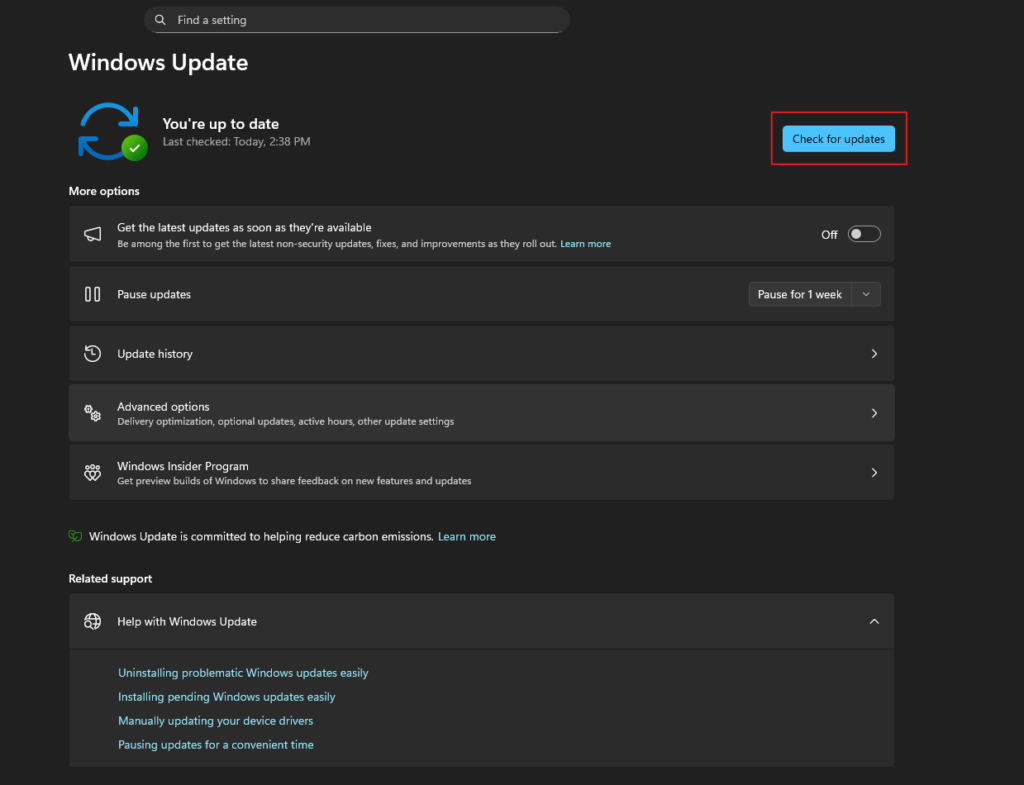
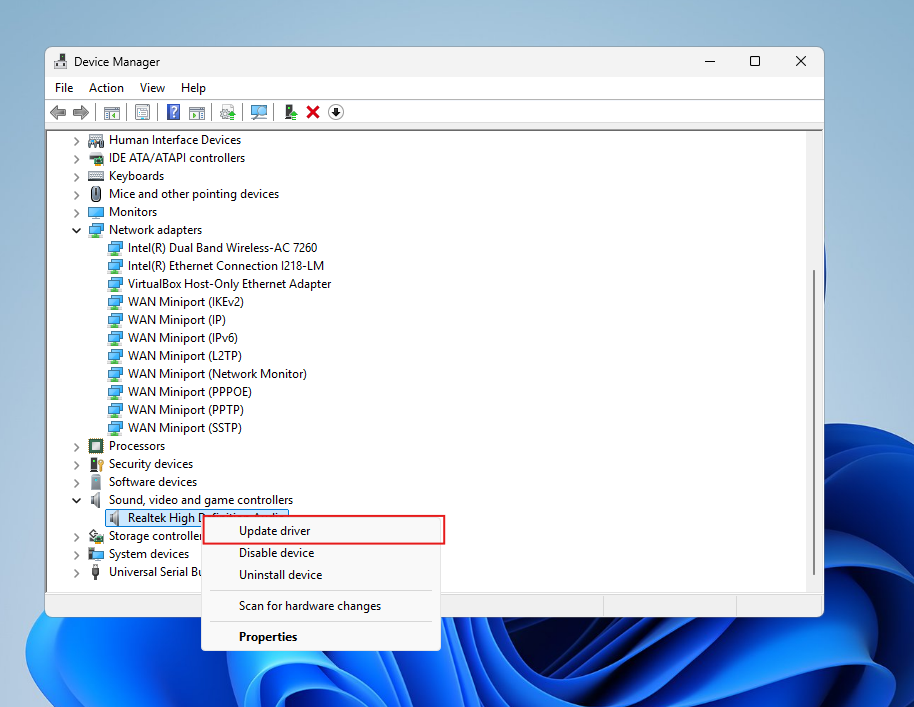
Pro Tip: Use tools like Snappy Driver Installer (free) if automatic updates miss something. After updating, test your system—many users report immediate improvements in smoothness.
Why This Works: Updates patch performance leaks and ensure compatibility with Windows 11’s features like DirectStorage for faster game loading.
Programs that launch automatically at startup can slow your boot time and consume resources, leading to overall lagging.
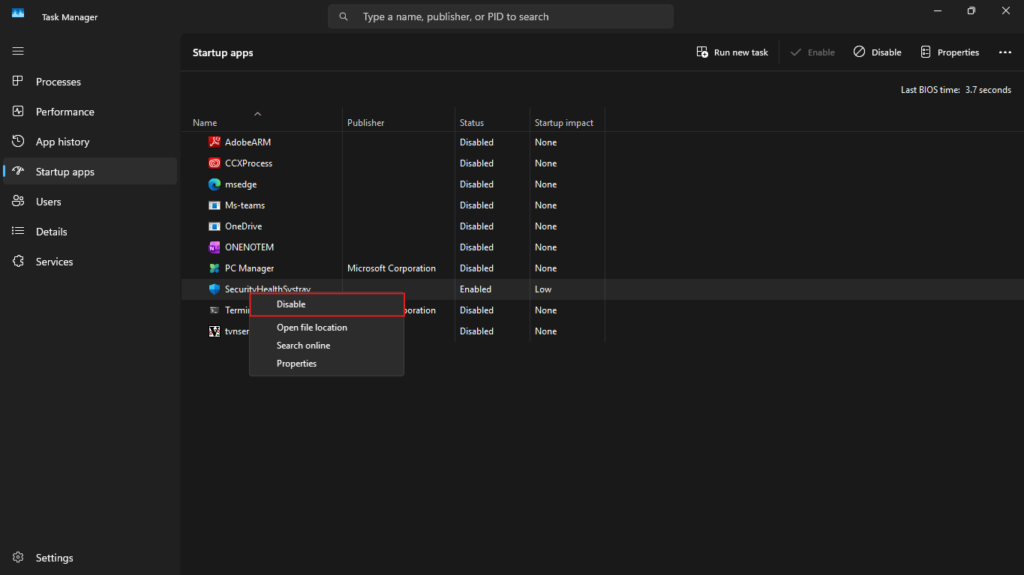
For more control:
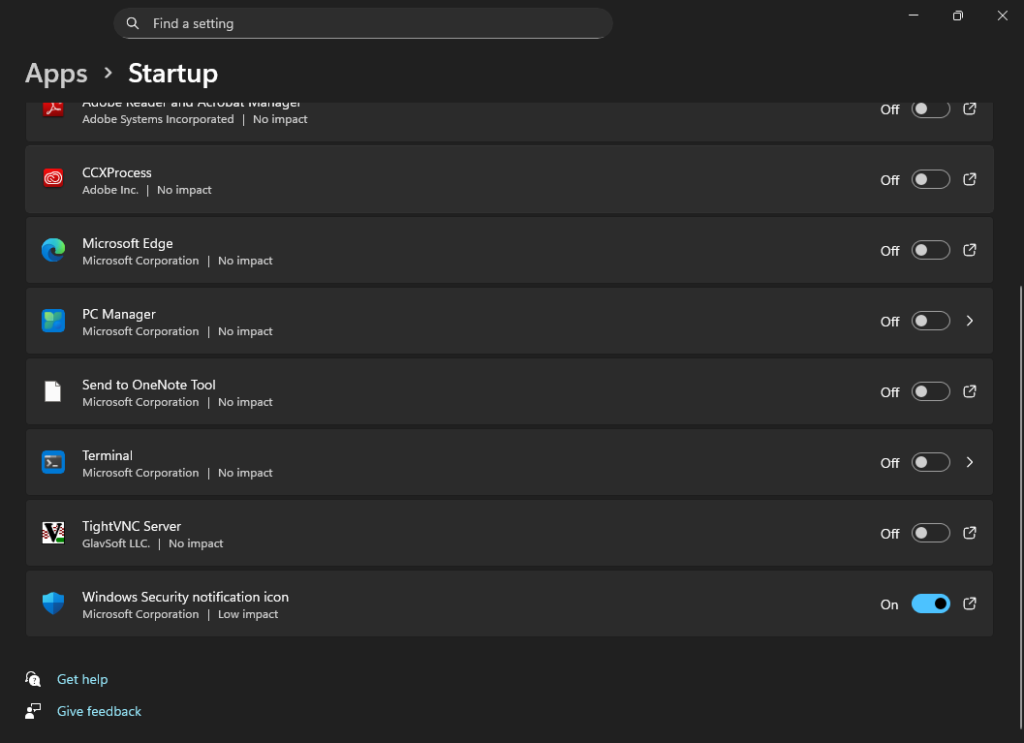
Beginner Note: If you’re unsure about an app, Google its name + “safe to disable startup” for advice. This can shave seconds off boot time and free up RAM for smoother multitasking.
A cluttered drive is like a messy desk—it slows everything down. Windows 11 needs at least 20-30GB free for optimal performance.
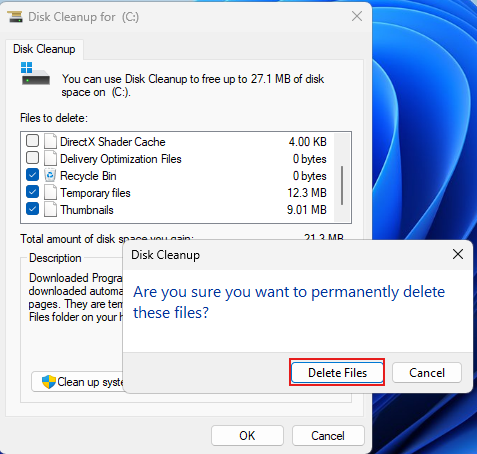
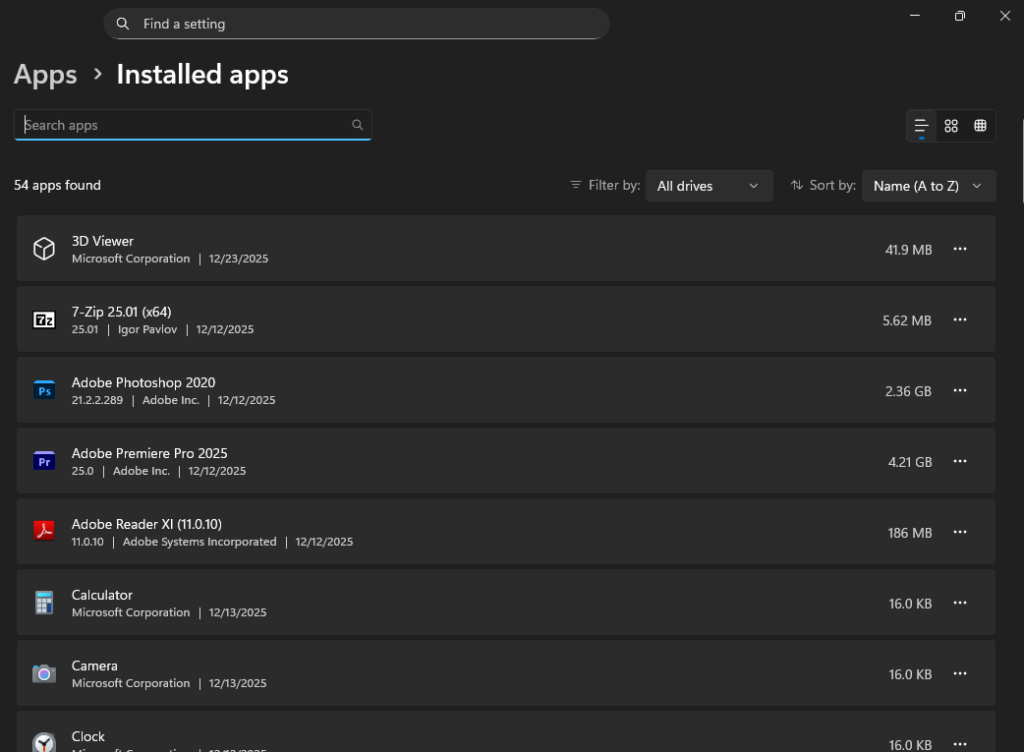
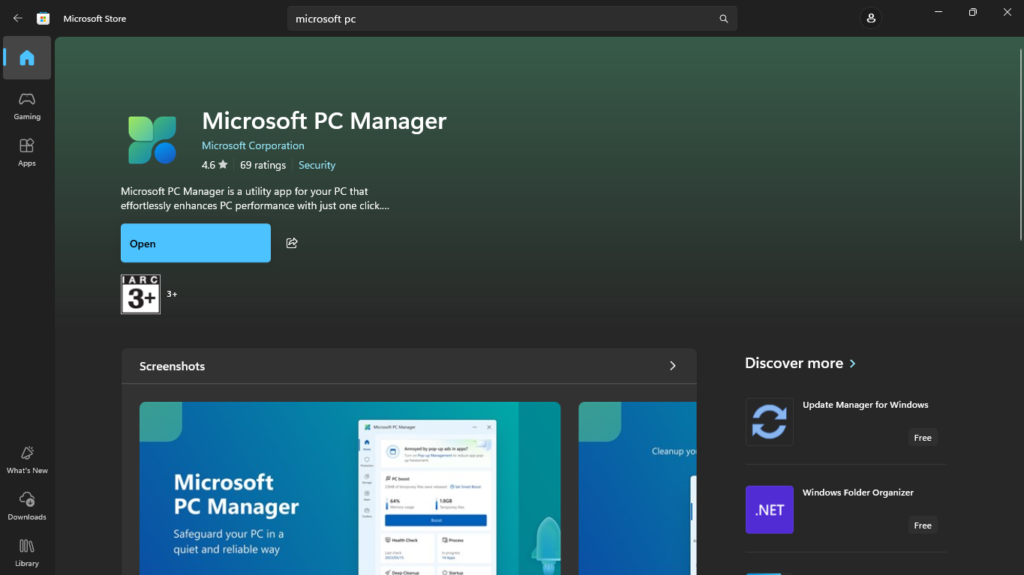
For SSD users: Enable Storage Sense in Settings > System > Storage to automatically delete old files.
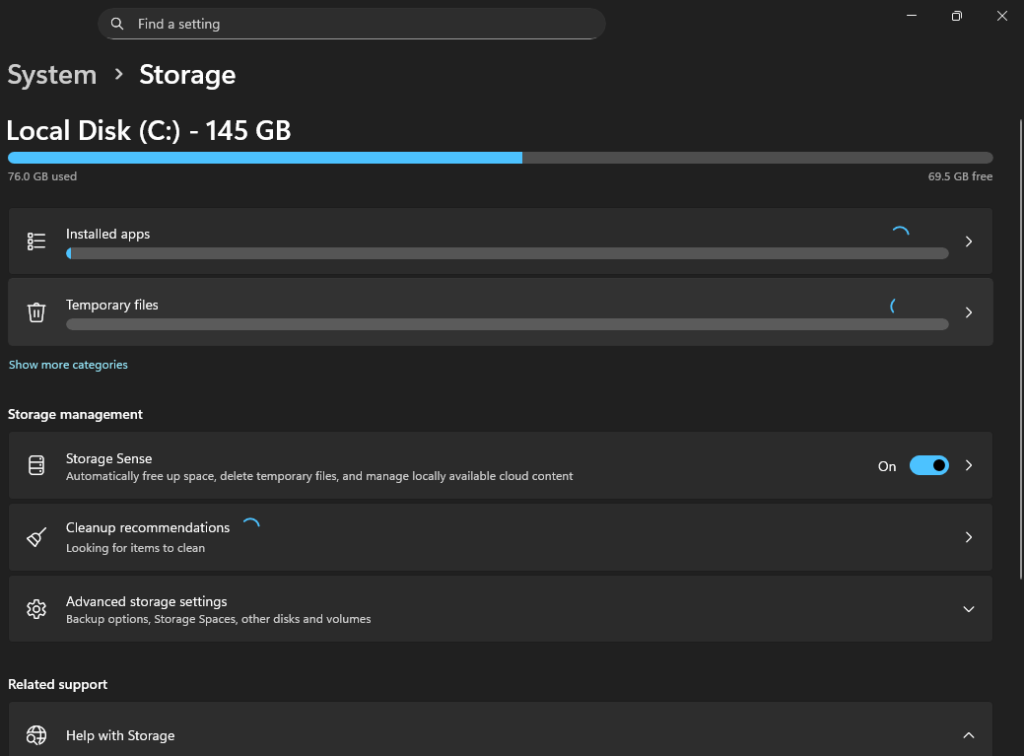
Result: More space means faster file access, reducing freezes during app launches or file saves.
Fragmented files on HDDs cause read delays, leading to lagging. SSDs don’t need defragging but benefit from optimization.
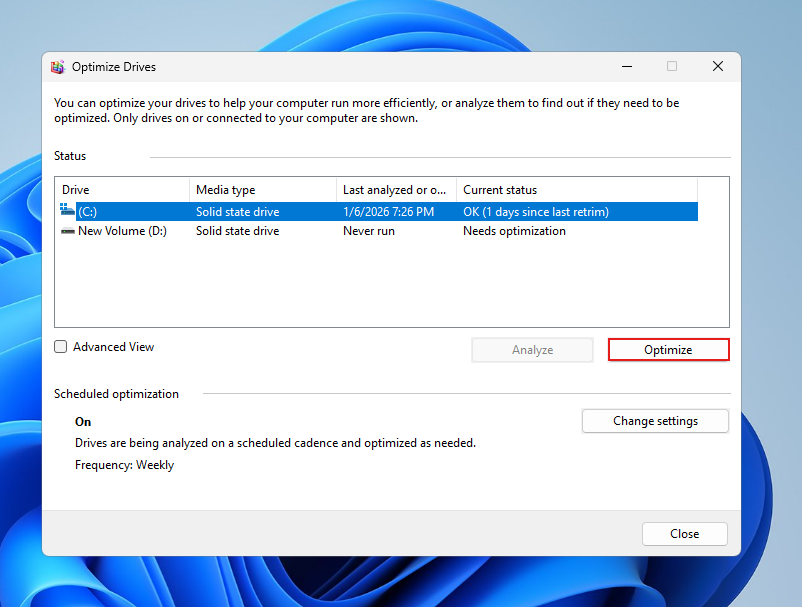
If you have an HDD, consider upgrading to an SSD—it’s one of the best performance boosts for Windows 11, often reducing lag by 50% or more.
Malicious software can run silently, causing freezes by using CPU/RAM.
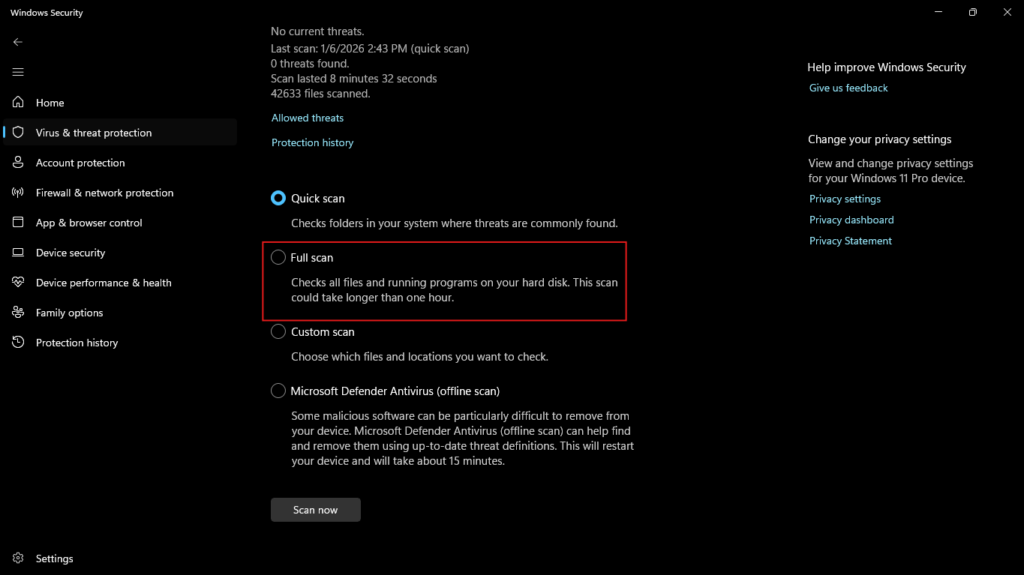
For extra protection:

If clean, great! If not, follow removal steps and restart.
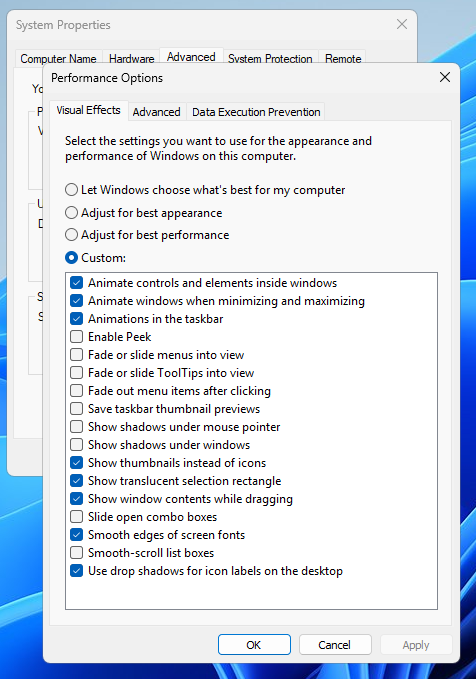
Windows 11’s fancy animations look great but can slow older hardware. Prioritize speed over eye candy.
Benefits in Action: This can reduce UI lag, making file explorer and menus feel instantaneous. Test by opening multiple windows—notice the snappier response?
Windows 11 has diagnostic tools to pinpoint issues.
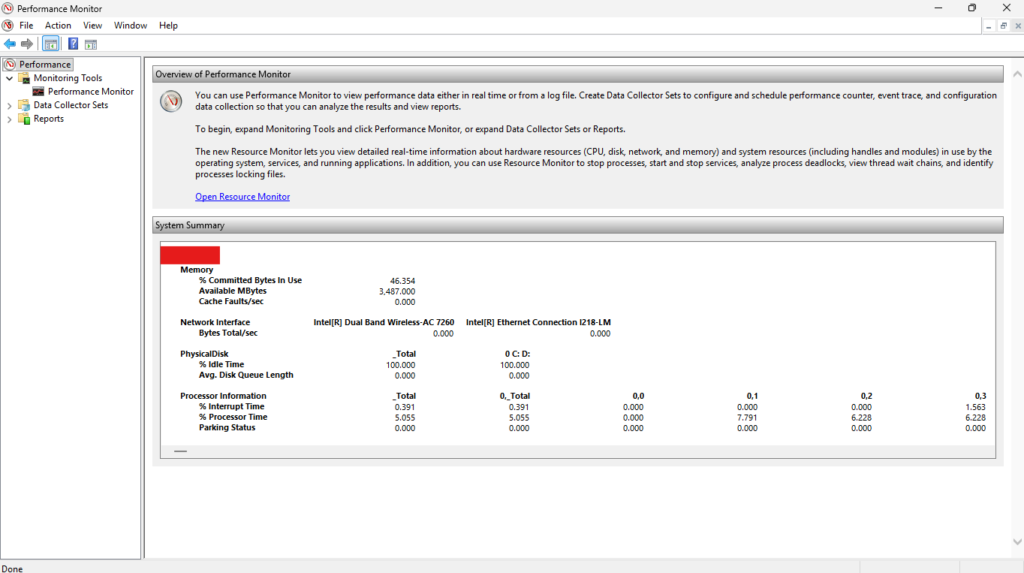
If RAM is low, close tabs or upgrade—Windows 11 shines with 16GB+.
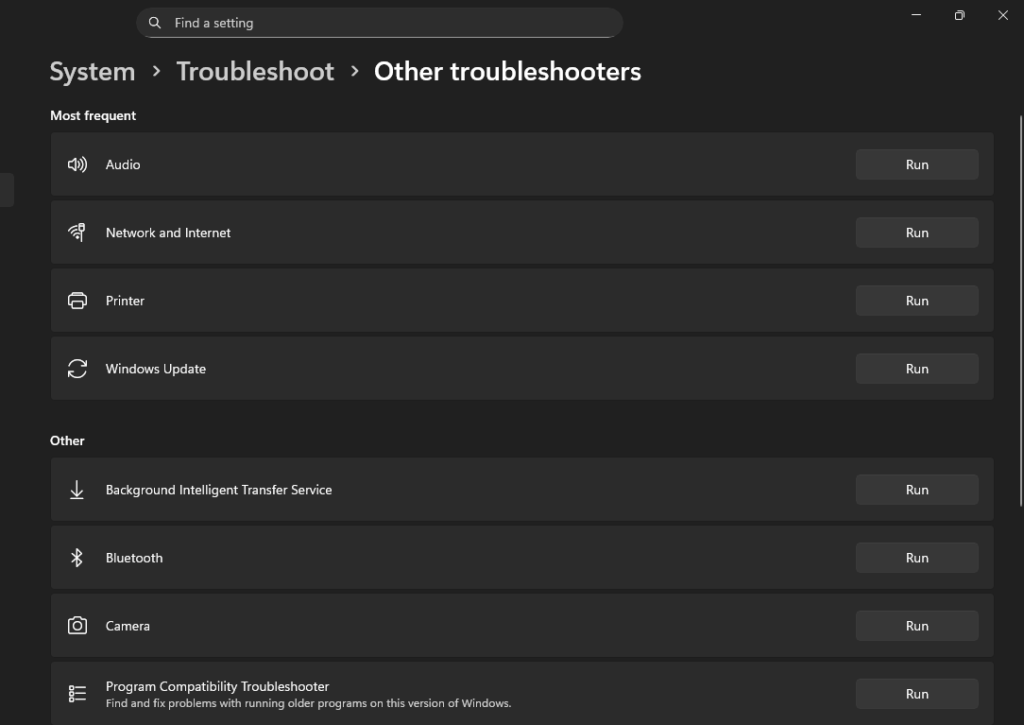
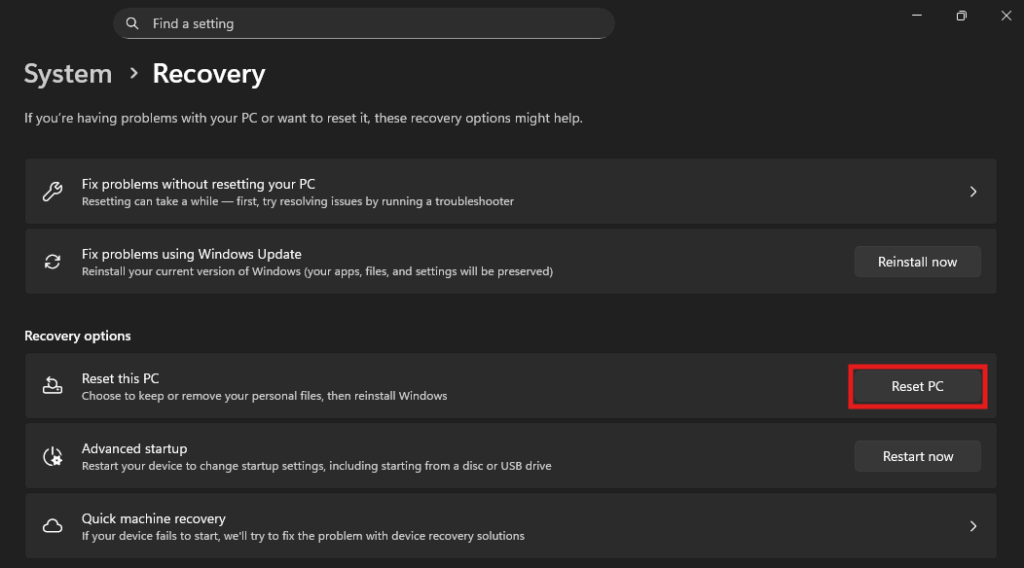
If basic tips aren’t enough:
For gamers: Optimize in-game settings or use Game Mode (Settings > Gaming).
If lagging persists, your hardware might be the issue. Minimum specs: 64-bit processor, 4GB RAM, 64GB storage, TPM 2.0. For smooth performance, aim for 8GB RAM, SSD, and a modern CPU like Intel 11th gen+ or AMD Ryzen 3000+.
Consider upgrading RAM or switching to an SSD—affordable fixes under $100. If it’s a laptop, a clean install might help.
By following these optimization tips, you should notice a significant reduction in lagging and freezing on Windows 11. Start with updates and cleanup, then tweak as needed. Regular maintenance—like weekly scans and monthly cleanups—keeps things running smoothly. If you’re new to this, take it one step at a time; most fixes are reversible.
Remember, a well-optimized PC not only performs better but also lasts longer. Have you tried these tips? Share your results in the comments below! For more tech guides, check out our articles on “Best Windows 11 Features for Productivity” or “How to Speed Up Windows Boot Time.”
Random freezes often stem from driver conflicts, overheating, or low RAM. Start with updates and monitoring tools.
Not inherently, but it demands more resources. Optimization can make it faster on compatible hardware.
At least 8GB for basic use; 16GB for multitasking or gaming to avoid lag.
Yes, within 10 days of upgrade, or via clean install. Backup first!
Built-in ones like Disk Cleanup and Windows Security are great starters. For more, try CCleaner or Malwarebytes.
This guide is based on proven methods as of 2026—stay updated with Microsoft’s support site for new tips. Happy computing!