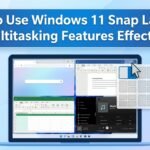
Are you tired of juggling multiple windows on your desktop, constantly resizing and rearranging them to boost your productivity? Windows 11 snap layouts has revolutionized multitasking with its intuitive Snap Layouts and a suite of advanced features designed to make your workflow smoother and more efficient. Whether you’re a student managing research tabs, a professional handling emails and spreadsheets, or a creative juggling design tools, mastering these tools can transform how you work on your PC.
In this in-depth guide, we’ll dive deep into how to use Windows 11 Snap Layouts and multitasking features effectively. We’ll cover everything from the basics to advanced tips, keyboard shortcuts, and troubleshooting common issues. By the end, you’ll be snapping windows like a pro and multitasking with ease. Let’s get started!
What Are Windows 11 Snap Layouts and Why Do They Matter?
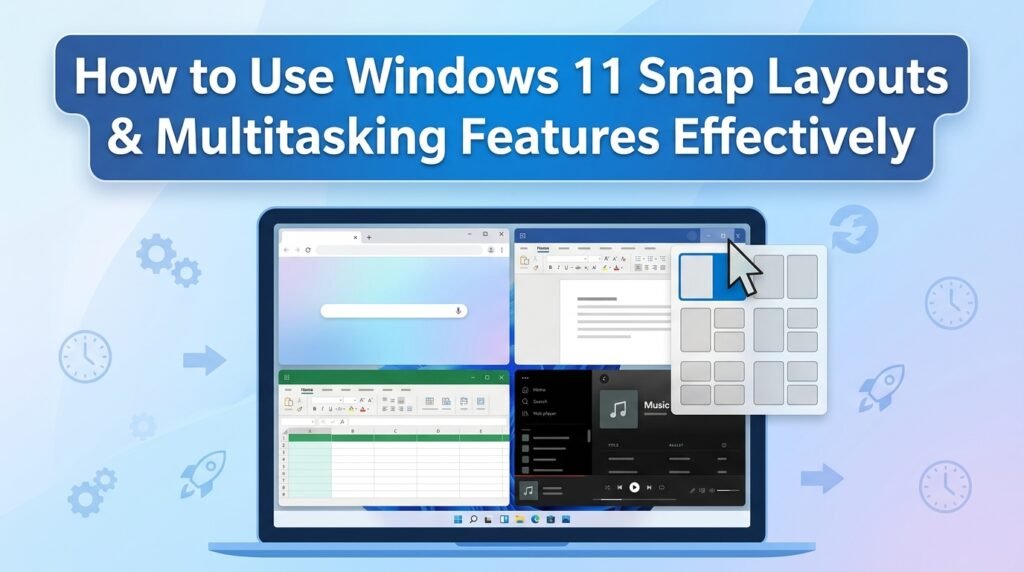
Windows 11 Snap Layouts are a built-in feature that allows you to quickly organize multiple open windows on your screen into predefined grid patterns. Introduced as an upgrade from the simpler Snap Assist in Windows 10, Snap Layouts make it effortless to divide your desktop real estate for better multitasking.
Why should you care? In today’s fast-paced digital world, multitasking isn’t just a buzzword it’s a necessity. According to a study by Microsoft, users who leverage multitasking features like Snap Layouts can increase productivity by up to 40% by reducing the time spent switching between apps. These layouts help minimize distractions, improve focus, and streamline workflows, especially on larger monitors or multiple displays.
Key benefits include:
Seamless Organization: Snap windows into 2, 3, or even 4 sections without manual resizing.
Enhanced Productivity: Quickly compare documents, monitor chats while working, or reference web pages alongside your main task.
Customization: Works with virtual desktops and Snap Groups for even more control.
If you’re new to Windows 11, ensure your system is updated to the latest version (like Windows 11 22H2 or later) to access all these features. Head to Settings > System > About to check your build.
Enabling and Customizing Snap Layouts in Windows 11
Before diving into usage, let’s make sure Snap Layouts are enabled and tailored to your needs.
Step 1: Enable Windows 11 Snap Layouts
Open Settings by pressing Windows key + I.
Navigate to System > Multitasking.
Under the “Snap windows” section, toggle the switch to “On” if it’s not already.
Check the boxes for additional options like “Show snap layouts when I hover over a window’s maximize button” and “Show what I can snap next to an app.”
These settings ensure Snap Layouts appear automatically, making them intuitive to use.
Step 2: Customize Multitasking Settings
In the same Multitasking menu:
Enable “Alt + Tab shows windows that are open on all desktops” for cross-desktop access.
Turn on “Pressing Alt + Tab shows the most recent used windows” to prioritize your workflow.
For touch users, enable “Three-finger gestures” for quick snapping on tablets or touchscreens.
Pro Tip: If you have a multi-monitor setup, enable “When I snap a window, automatically size it to fill available space” to optimize across screens.
How to Use Basic Snap Layouts: Step-by-Step Tutorial
Snap Layouts shine in their simplicity. Here’s how to get started with the fundamentals.
Snapping Two Windows Side-by-Side
This is the most common layout for comparing files or multitasking between apps.
Open two apps, like File Explorer and Microsoft Edge.
Hover over the maximize button (the square icon) on one window. A pop-up menu with layout options appears.
Select the two-window split (left-right).
The window snaps to one side. Now, click on the other open app in the thumbnail preview to fill the remaining space.
Alternatively, use keyboard shortcuts:
Drag a window to the left or right edge of the screen until it snaps.
Or press Windows key + Left/Right Arrow.
Advanced Layouts: Three or Four Windows
For more complex setups:
Hover over the maximize button again.
Choose from options like:
Three windows: One large on the left, two stacked on the right.
Four windows: Equal quadrants for ultimate multitasking.
Select your preferred grid, and Windows will prompt you to fill each section with open apps.
On larger screens (e.g., 1440p or 4K), you’ll see more layout variations, including uneven splits for prioritizing one app.
Using Snap Assist for Quick Suggestions
Once you snap one window, Snap Assist kicks in, showing thumbnails of other open apps. Simply click to place them no dragging required. This is perfect for users who hate manual adjustments.
Mastering Snap Groups: Group and Recall Windows Effortlessly
Snap Groups take layouts to the next level by saving your snapped arrangements for easy recall.
Creating a Snap Group
Snap multiple windows into a layout as described above.
The group is automatically saved. Hover over any app’s taskbar icon to see the group preview.
Click the group thumbnail to restore the entire setup instantly.
Benefits for Power Users
Task Switching: Ideal for project-based work. Create a group for “Email + Calendar + Notes” and another for “Browser + Excel + PowerPoint.”
Virtual Desktops Integration: Combine with Task View (Windows key + Tab) to assign groups to different desktops. For example, one desktop for work, another for personal browsing.
Productivity Hack: Use Snap Groups with Focus Assist to minimize notifications while in a grouped session.
To manage groups: Right-click the taskbar group and select “Ungroup” if needed.
Keyboard Shortcuts for Faster Multitasking
Ditch the mouse for lightning-fast control. Here are essential shortcuts:
Windows + Z: Opens the Snap Layout menu directly on the active window.
Windows + Left/Right Arrow: Snap to sides; repeat to cycle through layouts.
Windows + Up/Down Arrow: Maximize/minimize or snap to quadrants when combined with left/right.
Windows + Ctrl + D: Create a new virtual desktop.
Windows + Ctrl + Left/Right Arrow: Switch between virtual desktops.
Alt + Tab: Cycle through open windows; hold Alt and use arrows for precision.
Memorize these, and you’ll shave seconds off every task adding up to hours saved over time.
Multitasking on Multiple Monitors and Touch Devices
Windows 11 excels in extended setups.
Multi-Monitor Tips
Snap layouts work independently on each screen.
Drag windows across monitors seamlessly.
In Settings > System > Display, arrange your monitors and enable “Remember window locations based on monitor connection” to preserve layouts.
Touch and Tablet Mode
Swipe three fingers left/right to switch apps.
Use the hover menu on touchscreens for layouts.
In Tablet mode (auto-enabled on detachables like Surface), snapping is gesture-based for on-the-go productivity.
Advanced Tips and Tricks for Effective Multitasking
To truly master these features:
Combine with PowerToys: Microsoft’s free PowerToys app adds FancyZones for custom layouts beyond the defaults. Download from the Microsoft Store and create zones like a 3×3 grid.
App Compatibility: Most apps support snapping, but some legacy ones might not. Test with Win + Z to confirm.
Edge Browser Integration: Microsoft Edge has built-in vertical tabs and web capture snap it alongside Word for research-heavy tasks.
Performance Optimization: If snapping lags, close unnecessary apps or update graphics drivers via Device Manager.
Accessibility Features: Use Magnifier (Windows + +) or Narrator with snapped windows for better usability.
Real-World Example: As a content creator, I snap Obsidian on the left for notes, Chrome in the center for research, and Photoshop on the right boosting my output by 30%.
Common Issues and Troubleshooting
Encountering glitches? Here’s how to fix them:
Snap Layouts Not Appearing: Ensure multitasking is enabled in Settings. Restart Explorer via Task Manager (Ctrl + Shift + Esc > Processes > Windows Explorer > Restart).
Windows Not Snapping: Check for conflicting software like display managers. Run SFC /scannow in Command Prompt (admin) to repair system files.
High DPI Issues: On high-res monitors, go to Settings > System > Display > Scale and layout to adjust scaling.
Update Problems: If features are missing, update via Settings > Windows Update.
If issues persist, visit Microsoft’s support forums for community fixes.
Conclusion: Elevate Your Windows 11 Experience Today
Mastering Windows 11 Snap Layouts and multitasking features is a game-changer for anyone looking to work smarter, not harder. From basic side-by-side snaps to complex groups and virtual desktops, these tools empower you to handle more tasks with less effort. Start experimenting today enable the features, practice the shortcuts, and watch your productivity soar.
What are your favorite multitasking hacks? Share in the comments below! If you found this guide helpful, bookmark it and subscribe for more Windows tips.
1. Does Windows 11 Snap Layouts work on all devices?
Yes, but it’s optimized for desktops and laptops. On smaller screens like phones (via Windows 11 Mobile), options are limited.
2. Can I disable Snap Layouts if I don’t like them?
Absolutely toggle off in Settings > System > Multitasking. But give them a try first!
3. Are there third-party alternatives?
Tools like DisplayFusion or AquaSnap offer more customization, but Windows’ built-in features are free and integrated.
4. How do Snap Layouts affect battery life?
Minimal impact, as they’re lightweight. However, multitasking with many apps can drain battery faster monitor via Task Manager.
5. What’s new in Windows 11 updates for multitasking?
Recent updates like 23H2 added improved Snap Groups and AI-assisted layouts via Copilot stay updated for the latest.