Physical Address
304 North Cardinal St.
Dorchester Center, MA 02124
Physical Address
304 North Cardinal St.
Dorchester Center, MA 02124

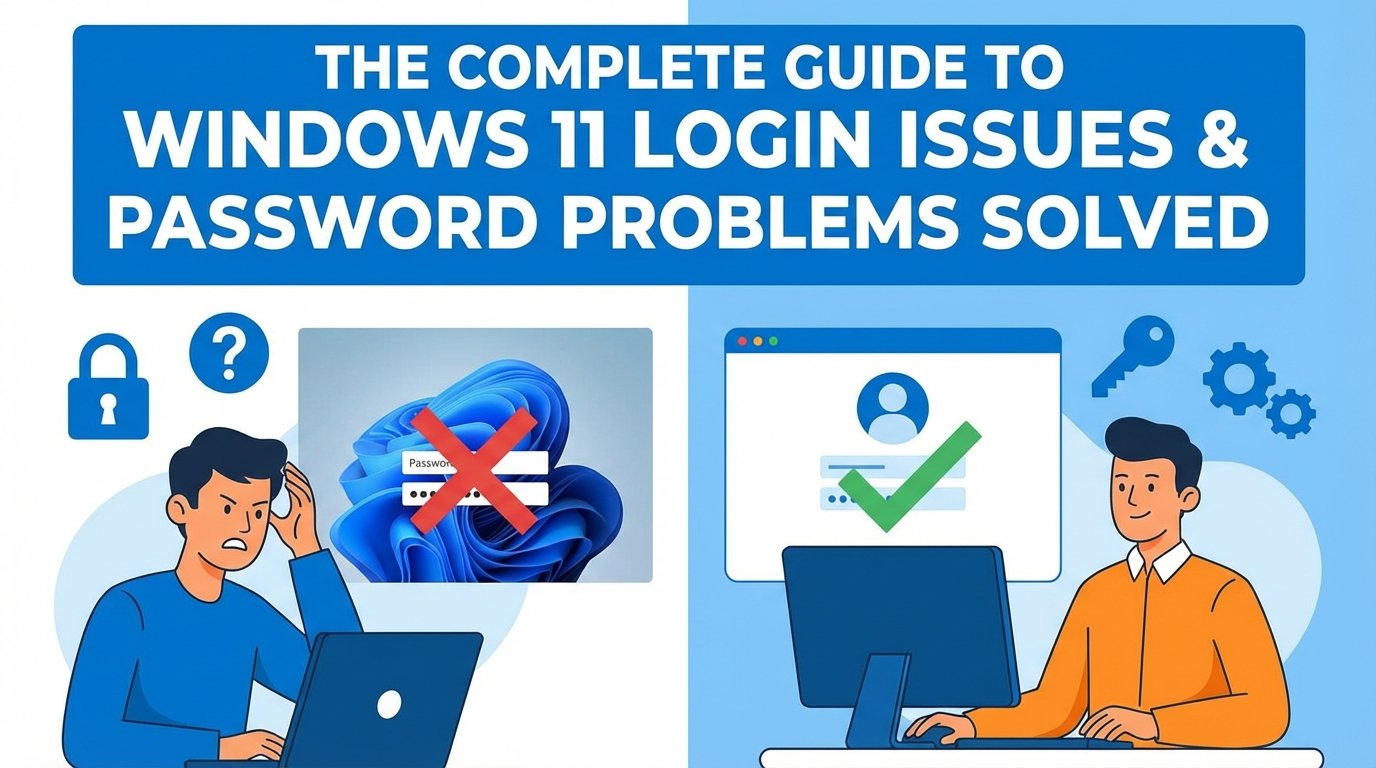
Logging into your computer should be the easiest part of your day. You press the power button, wait a few seconds, type your password or PIN, and you’re in. But what happens when Windows 11 suddenly decides not to cooperate? You stare at the screen, retype your password three times, and still—nothing. Frustrating, right?
Windows 11 login issues are more common than most people realize. Whether you’re using a Microsoft account, a local account, a PIN, fingerprint, or facial recognition, something can occasionally break. A simple update can cause unexpected login behavior. A keyboard layout change can trick you into thinking your password is wrong. Even internet connectivity problems can stop you from accessing your PC.
The good news? Almost every Windows 11 login problem has a solution. And most of them don’t require advanced technical skills. You just need to understand what’s happening behind the scenes.
In this complete guide, we’ll walk step by step through every major Windows 11 login issue—what causes it, how to fix it, and how to prevent it from happening again. Whether you’re locked out right now or just preparing for the future, you’re in the right place.
Let’s start by understanding why these login issues happen in the first place.
Have you ever wondered why login problems seem to appear out of nowhere? One day everything works perfectly, and the next day you’re stuck on the sign-in screen.
Windows 11 relies on multiple layers of authentication systems. These include:
When you sign in, Windows doesn’t just check your password. It verifies credentials, syncs account information, validates security certificates, and confirms device integrity. If even one piece of that chain fails, you might see an error.
Updates are one major cause. Windows 11 updates can reset settings, change security policies, or temporarily corrupt user profiles. Sometimes your PIN stops working after a feature update. Other times, your Microsoft account fails to sync due to server-side issues.
Another big reason? Human error. Caps Lock being on. Wrong keyboard layout. Typing mistakes. Forgetting that you recently changed your password.
Network dependency also plays a huge role. If you use a Microsoft account and your internet is unstable, Windows may struggle to verify your credentials.
In short, Windows 11 login problems are usually not mysterious. They’re the result of small disruptions in a complex system. Once you understand that, fixing them becomes much easier.
Not all login errors are the same. And treating them the same way can waste your time. So let’s break down the most common categories.
First, there are credential errors. These include messages like:
These errors usually mean either the password is wrong or Windows cannot verify it properly.
Second, you have PIN-related errors. For example:
These often occur after updates or security policy changes.
Third, there are profile loading errors, where Windows gets stuck on:
This usually points to a corrupted user profile or system file issue.
Then there are account lockouts, which happen after multiple incorrect attempts. Windows temporarily blocks access for security reasons.
Finally, there are Microsoft account sync issues, where your device can’t communicate with Microsoft servers.
Each type requires a slightly different solution. Identifying which category your issue falls into is the first real step toward fixing it.
Now, let’s dive into the most common problems users face.
This is probably the most infuriating login issue of all. You know your password is correct. You’ve typed it a hundred times before. Yet Windows 11 keeps telling you it’s wrong.
Before panicking, take a breath.
The most common cause is keyboard layout mismatch. Windows may have switched from your usual keyboard language (like US) to another (like UK or another language). That tiny difference can change special characters dramatically.
For example:
Next, check Caps Lock and Num Lock. It sounds basic, but it’s responsible for thousands of login failures daily.
Another possibility? You recently changed your Microsoft account password on another device. If your PC hasn’t synced properly, it may temporarily reject the new password.
Here’s what you should try:
If that doesn’t work, try signing in using another method—like your PIN or fingerprint. Once inside, you can reset your password properly.
Most of the time, this issue is simple. It just feels complicated in the moment.
Imagine entering your email address, and Windows responds as if it doesn’t exist. That can feel alarming. But again, there’s usually a logical explanation.
Windows 11 relies heavily on Microsoft accounts. These accounts sync settings, OneDrive, Office, and more. But they also depend on internet connectivity and Microsoft servers.
If your Microsoft account is “not recognized,” here are the most common causes:
First, check your network connection. Look at the Wi-Fi or Ethernet icon on the login screen. If you’re offline, connect before trying again.
If you recently changed your account’s primary email alias, make sure you’re using the updated one.
Sometimes, switching to a local sign-in option (if available) allows you to access your PC temporarily. From there, you can re-add or repair your Microsoft account.
In rare cases, Microsoft services may experience outages. Checking Microsoft’s service status page from another device can confirm this.
Remember, your account usually isn’t “gone.” It’s just temporarily unreachable. The key is restoring proper communication between your PC and Microsoft’s servers.
Windows Hello PIN is designed to make login faster and easier. But ironically, it’s one of the most common sources of login trouble.
You might see messages like:
Why does this happen?
The PIN system relies on a secure folder called the NGC folder, which stores encrypted PIN data. If this folder becomes corrupted—often due to updates or permission changes—your PIN stops working.
Another reason could be:
The simplest fix is often selecting “Sign-in options” and using your password instead. Once logged in, you can remove and recreate your PIN.
Here’s the general approach:
If you cannot log in at all, Safe Mode may be required. We’ll cover that in the advanced troubleshooting section.
PIN issues feel serious, but they rarely mean your data is lost. They simply mean Windows needs to rebuild your authentication settings.