Are you dealing with frustrating issues on your Windows 11 PC right after installing an update? You’re not alone. Microsoft regularly rolls out updates to improve security, fix bugs, and add new features, but sometimes these changes can cause unexpected problems. From blue screens to sluggish performance, these glitches can disrupt your daily workflow. In this beginner-friendly guide, we’ll dive deep into the most common Windows 11 problems after updates, explain why they happen, and provide step-by-step solutions to help you recover. Whether you’re a tech newbie or just need a quick fix, this article has you covered.
We’ll cover everything from basic troubleshooting to advanced recovery methods, all explained in simple terms. By the end, you’ll know how to fix Windows 11 update issues and prevent them in the future. Let’s get your PC back on track!
Why Do Windows 11 Updates Cause Problems?
Before we jump into the fixes, it’s helpful to understand the root causes. Windows 11 updates are designed to enhance your system, but they can clash with existing software, hardware drivers, or even corrupted files. Common culprits include:
Incompatible Drivers: Updates might not play well with older graphics cards, printers, or Wi-Fi adapters.
Software Conflicts: Third-party apps like antivirus programs or VPNs could interfere.
Incomplete Installations: If an update gets interrupted (e.g., due to power loss), it can leave your system unstable.
Bugs in the Update Itself: Even Microsoft admits that some updates have glitches, which they often patch in follow-up releases.
Hardware Limitations: Older PCs might struggle with new features, leading to performance dips.
Knowing this helps you approach fixes logically. Now, let’s explore the most reported Windows 11 problems after updates in 2026.
Common Windows 11 Problems After an Update
Based on user reports from forums like Reddit, Microsoft Community, and tech sites, here are the top issues people face post-update. We’ll describe each one, including symptoms and potential triggers.
1. Blue Screen of Death (BSOD)
The dreaded BSOD is one of the most alarming issues. Your screen turns blue with an error code like “CRITICAL_PROCESS_DIED” or “IRQL_NOT_LESS_OR_EQUAL,” and your PC restarts unexpectedly.
Why It Happens: Often due to faulty drivers (e.g., NVIDIA or Intel graphics) or corrupted system files after an update.
Symptoms: Random crashes, especially during boot or when using specific apps.
Frequency: High after major updates like the 24H2 release in late 2024, which carried over into 2025-2026 patches.
2. Slow Performance and Freezing
Your once-snappy PC suddenly feels like it’s wading through molasses. Apps take forever to load, and the system freezes intermittently.
Why It Happens: Updates can increase resource usage, or they might conflict with background processes. Indexing services or Windows Search might also go haywire.
Symptoms: High CPU/RAM usage in Task Manager, delayed responses, or complete lockups.
Frequency: Common after cumulative updates that add AI features like Copilot enhancements.
3. Wi-Fi and Network Connectivity Issues
You can’t connect to the internet, or your Wi-Fi drops frequently.
Why It Happens: Updates might reset network settings or install incompatible drivers for your wireless adapter.
Symptoms: “No Wi-Fi networks found,” error messages like “Windows couldn’t find a driver for your network adapter,” or unstable connections.
Frequency: Spikes after security updates that tweak network protocols.
4. App Crashes or Incompatibility
Certain programs crash on launch, or features like the Start menu or Taskbar stop working.
Why It Happens: Updates can break compatibility with older software, especially if it’s not optimized for Windows 11.
Symptoms: Error pop-ups like “This app can’t run on your PC,” or apps freezing mid-use.
Frequency: Often seen with creative tools like Adobe Suite or games after feature updates.
5. Boot Loops or Failure to Start
Your PC gets stuck in a restart cycle or won’t boot past the login screen.
Why It Happens: Corrupted boot files or update failures during installation.
Symptoms: Endless “Preparing Automatic Repair” messages or black screens.
Frequency: Rare but devastating, usually after interrupted updates.
6. Battery Drain on Laptops
If you’re on a laptop, you might notice the battery dying faster than usual.
Why It Happens: Power management changes in updates can optimize poorly for your hardware.
Symptoms: Reduced battery life, even when idle.
Frequency: More common in 2025-2026 updates focusing on efficiency for ARM-based devices.
7. Printer or Peripheral Problems
External devices like printers, scanners, or external drives aren’t recognized.
Why It Happens: Driver updates that don’t match your hardware.
Symptoms: “Device not found” errors or failed printing jobs.
Frequency: Persistent issue since Windows 11’s launch, exacerbated by recent patches.
If you’re experiencing any of these, don’t panic—most are fixable without professional help.
Step-by-Step Troubleshooting for Windows 11 Update Issues
Start with the basics and work your way up. These steps are safe for beginners and don’t require advanced tools.
Step 1: Restart Your PC (The Simple Fix)
It sounds cliché, but a full restart can resolve temporary glitches.
Shut down completely (hold the power button if needed).
Wait 30 seconds, then power on.
Check if the problem persists.
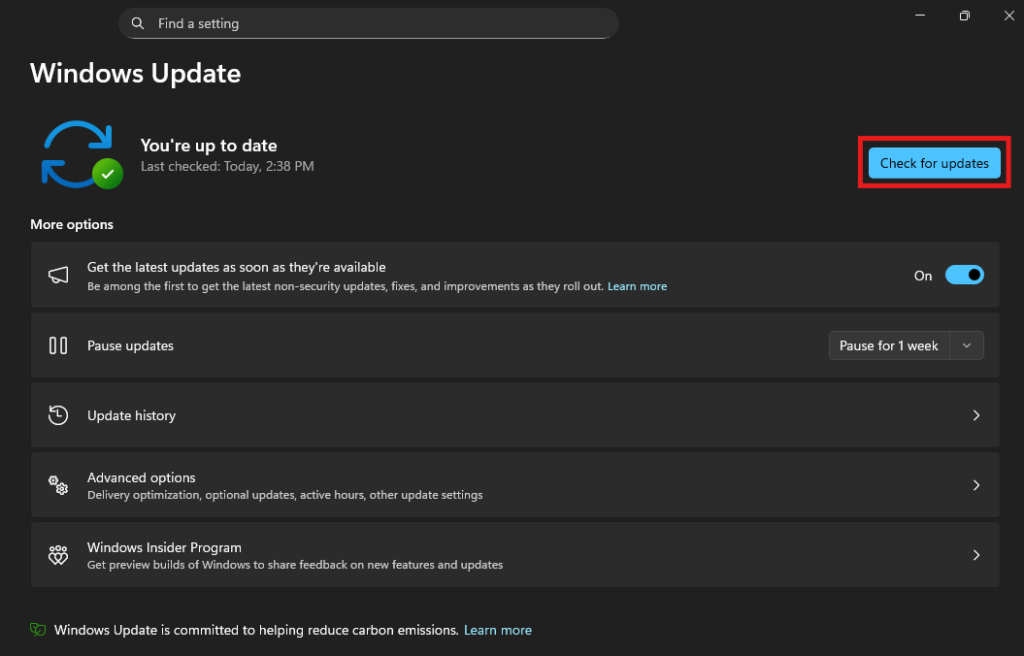
Step 2: Check for Pending Updates
Sometimes, a follow-up patch fixes the initial issues.
Go to Settings > Windows Update.
Click Check for updates.
Install any available ones and restart.
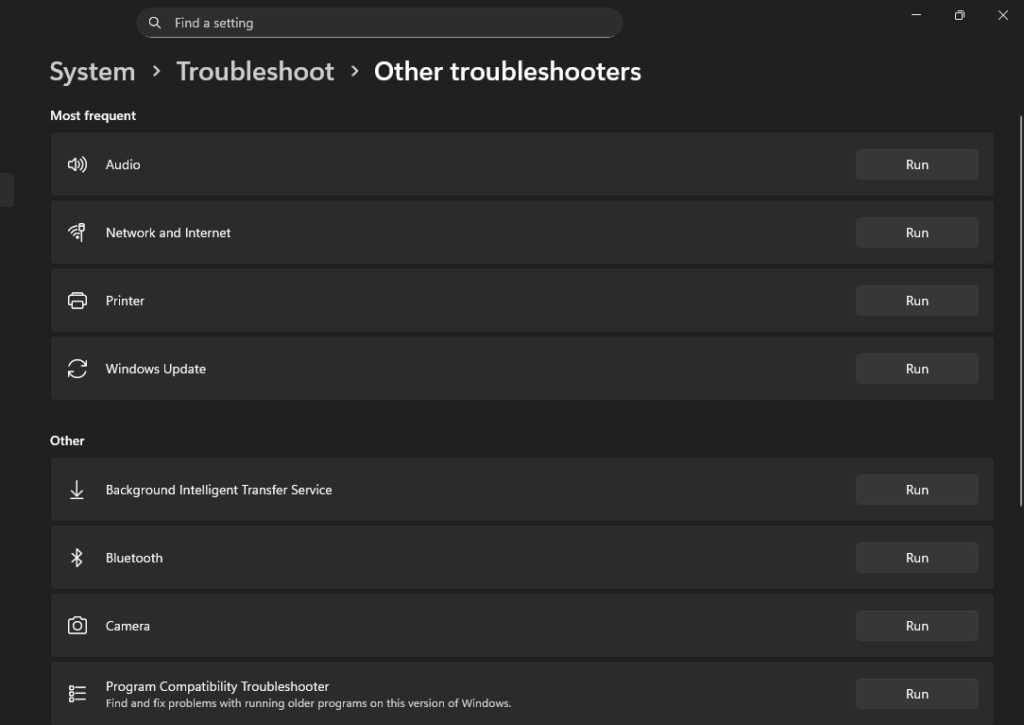
Step 3: Run the Built-in Troubleshooters
Windows has automated tools for common problems.
Search for “Troubleshoot” in the Start menu.
Select Other troubleshooters.
Run the ones for Network Adapter, Internet Connections, or Hardware and Devices.
Follow the on-screen prompts.
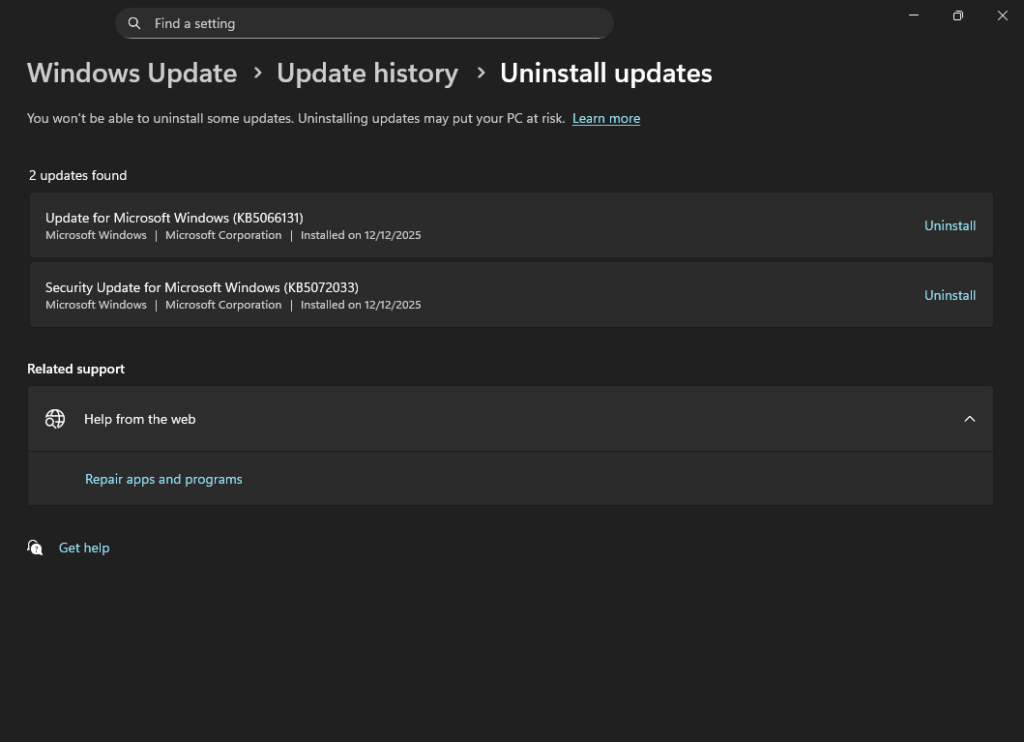
Step 4: Uninstall the Problematic Update
If the issue started right after an update, roll it back.
Go to Settings > Windows Update > Update history > Uninstall updates.
Find the recent update (e.g., KB followed by numbers).
Select it and click Uninstall.
Restart your PC.
Note: This option is only available for 10 days after installation.
Step 5: Use Safe Mode to Isolate Issues
Safe Mode loads Windows with minimal drivers, helping identify conflicts.
Restart your PC and hold Shift while clicking Restart.
In Safe Mode, uninstall suspicious software or drivers via Device Manager (right-click Start > Device Manager).
Restart normally to test.
Step 6: Scan for Corrupted Files
Use Command Prompt to repair system files.
Search for “cmd” and run as Administrator.
Type sfc /scannow and press Enter (this scans and fixes files).
If issues persist, type DISM /Online /Cleanup-Image /RestoreHealth and Enter.
Restart after completion.
Step 7: Update Drivers Manually
Outdated drivers are a common villain.
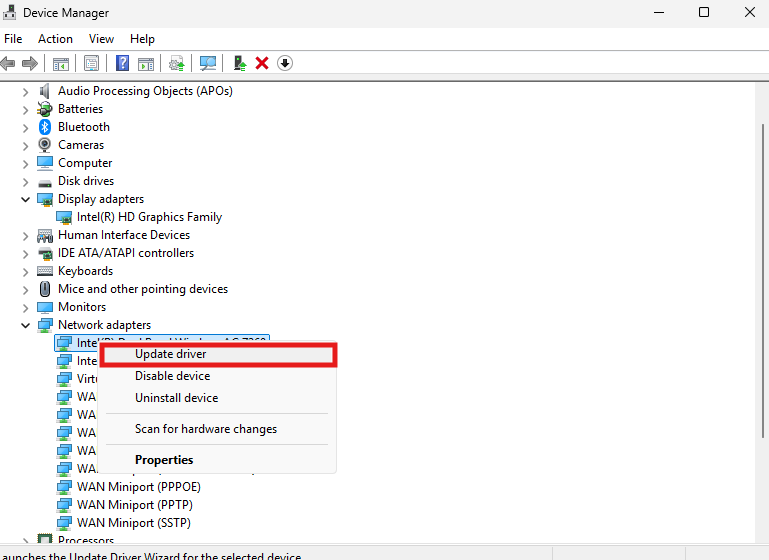
Right-click Start > Device Manager.
Expand categories like Display adapters or Network adapters.
Right-click your device > Update driver > Search automatically.
If that fails, visit the manufacturer’s site (e.g., NVIDIA, Intel) for the latest drivers compatible with Windows 11.
Advanced Recovery Options for Stubborn Problems
If basic fixes don’t work, try these more involved methods. Back up important files first using an external drive or OneDrive.
1. System Restore
Revert your PC to a pre-update state.
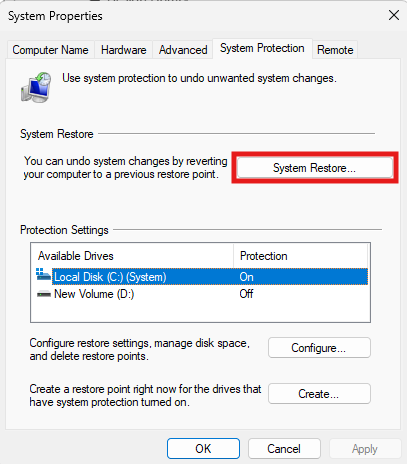
Search for “Create a restore point” and open System Properties > System Protection.
Click System Restore and choose a restore point before the update.
Follow the wizard—your files stay intact, but recent apps might need reinstalling.
2. Reset This PC
A fresh start without losing files.
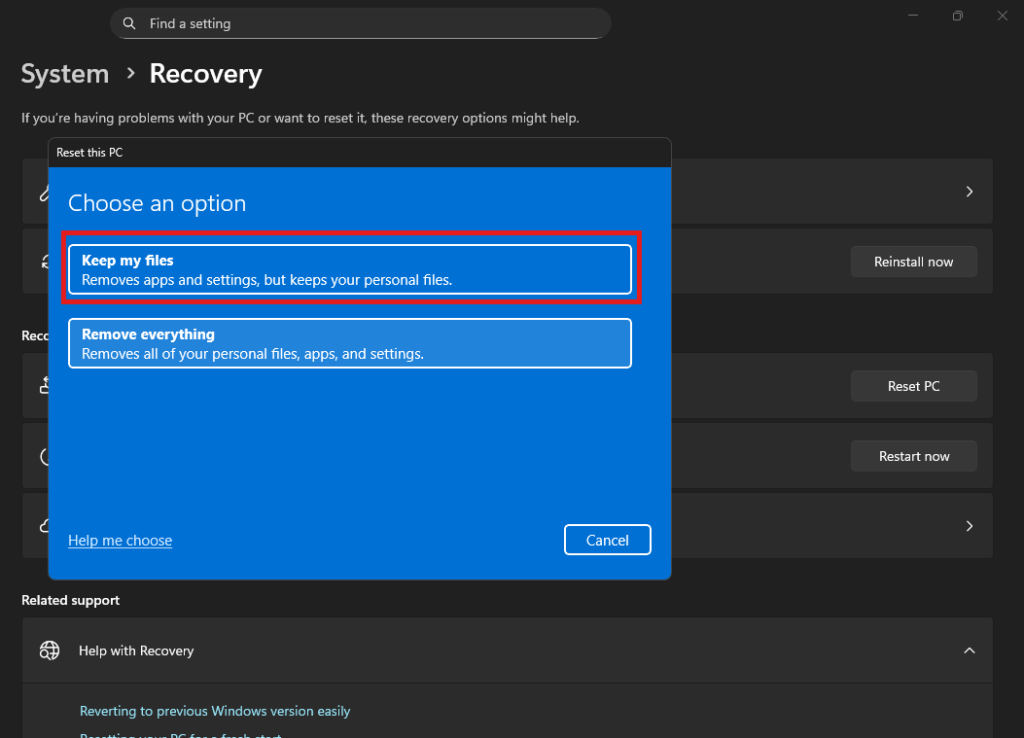
Go to Settings > System > Recovery.
Under Reset this PC, click Reset PC.
Choose Keep my files (removes apps and settings) or Remove everything (full wipe).
Select Cloud download for a clean Windows install.
This can take 30-60 minutes.
3. Use Recovery Drive or Installation Media
If your PC won’t boot:
Create a USB recovery drive on another PC (search “Create a recovery drive”).
Boot from the USB (change boot order in BIOS—press F2/Del during startup).
Select Troubleshoot > Recover from a drive or use Command Prompt for repairs.
4. Reinstall Windows 11 from Scratch
As a last resort:
Download the Windows 11 ISO from Microsoft’s site.
Use the Media Creation Tool to make a bootable USB.
Boot from it and follow the installation prompts.
Activate with your product key if needed.
How to Prevent Windows 11 Update Problems in the Future
Prevention is better than cure. Here’s how to stay ahead:
Backup Regularly: Use Windows Backup or tools like Acronis to save your data.
Pause Updates: In Settings > Windows Update > Advanced options, pause for up to 5 weeks during busy times.
Update Drivers Beforehand: Check for hardware updates before installing Windows patches.
Use Insider Builds Cautiously: If you’re in the Insider Program, stick to stable channels.
Monitor Update Notes: Read Microsoft’s release notes for known issues before updating.
Keep Antivirus Updated: Ensure it’s compatible—switch to Windows Defender if needed.
Hardware Check: Run the PC Health Check app to ensure your device meets Windows 11 requirements.
Conclusion: Get Back to Smooth Sailing with Windows 11
Dealing with Windows 11 problems after an update can be stressful, but with these detailed steps, you should be able to recover quickly. Start with simple restarts and troubleshooters, then escalate to restores or resets if needed. Remember, Microsoft often releases fixes soon after issues arise, so keeping your system updated (ironically) is key.
If your problem persists, consider seeking help from Microsoft Support or a professional technician. Have you faced any of these issues? Share your experience in the comments below—we’d love to hear your tips!
For more tech guides, check out our articles on Windows 11 Optimization Tips or Best Free Antivirus for Windows 11. Stay tuned for updates!