Physical Address
304 North Cardinal St.
Dorchester Center, MA 02124
Physical Address
304 North Cardinal St.
Dorchester Center, MA 02124


Before diving into the code, it is important to understand the advantages and limitations of using a Glassmorphism Forgot Password Page in your UI/UX workflow.
backdrop-filter property.<div id=”features”></div>
Table of Contents
<a name=”introduction”></a>
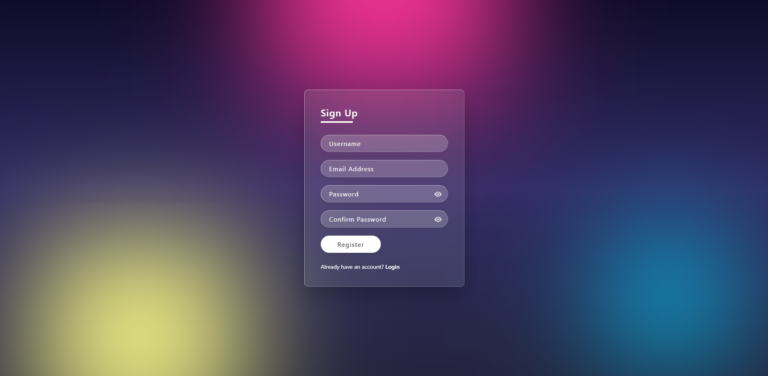
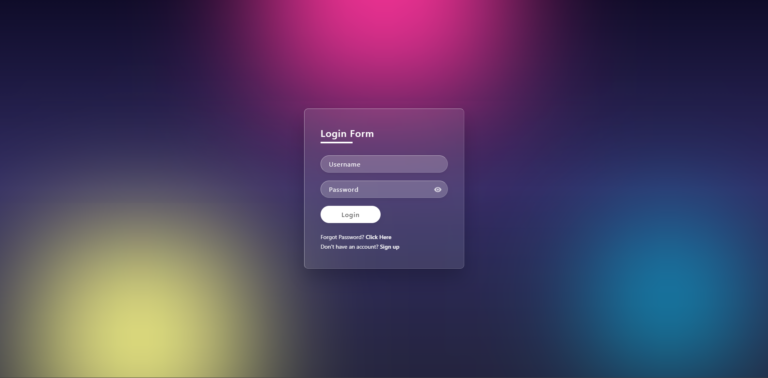
In our previous tutorial, we explored how to create a Glassmorphism Login Form. Today, we’re expanding that project by building a Glassmorphism Forgot Password page (or Reset Password page) that matches that futuristic aesthetic perfectly. This Glassmorphism Forgot Password page guide will help you create a seamless user experience.
This design utilizes modern CSS techniques like backdrop-filter to create a frosted glass effect, complemented by vibrant, blurred background blobs and subtle interactive elements for your Glassmorphism Forgot Password page.
<a name=”why-use-glassmorphism”></a>
Glassmorphism is a popular design trend in UI/UX design that uses transparency and background blur to create a sense of hierarchy and depth. It is highly effective for:
forgot.html)To start, create a new file called forgot.html. This structure includes a clean email input field with an envelope SVG icon, replacing the password “eye” icon used in the login page.
<!DOCTYPE html>
<html lang="en">
<head>
<meta charset="UTF-8">
<meta name="viewport" content="width=device-width, initial-scale=1.0">
<title>Forgot Password - Glassmorphism UI Design</title>
<link rel="stylesheet" href="style.css">
</head>
<body>
<section aria-label="Password Reset Section">
<div class="color"></div>
<div class="color"></div>
<div class="color"></div>
<div class="box">
<div class="container">
<div class="form">
<h2>Reset Password</h2>
<p class="form-description">
Enter your email address and we will send you a secure link to reset your password.
</p>
<form onsubmit="event.preventDefault(); sendResetLink();">
<div class="inputBox">
<input type="email" id="resetEmail" placeholder="Enter Email Address" required aria-label="Email Address">
<div class="eye-icon">
<svg width="20px" height="20px" viewBox="0 0 24 24" fill="none" xmlns="[http://www.w3.org/2000/svg](http://www.w3.org/2000/svg)" role="img" aria-label="Envelope Icon">
<path d="M22 6C22 4.9 21.1 4 20 4H4C2.9 4 2 4.9 2 6M22 6V18C22 19.1 21.1 20 20 20H4C2.9 20 2 19.1 2 18V6M22 6L12 13L2 6" stroke="#fff" stroke-width="2" stroke-linecap="round" stroke-linejoin="round"/>
</svg>
</div>
</div>
<div class="inputBox">
<input type="submit" value="Send Link">
</div>
<p class="forget">
<a href="index.html" class="back-link">
<span class="arrow">←</span> Back to Login
</a>
</p>
</form>
</div>
</div>
</div>
</section>
<script>
function sendResetLink() {
const email = document.getElementById('resetEmail').value;
if(email) {
// In production, use a secure API call to your backend
alert(`A reset link has been sent to: ${email}`);
}
}
</script>
</body>
</html>style.css)Add these updated rules to your existing style.css. We have optimized the submit button width and added a smooth animation for the back-to-login link to improve user experience (UX).
/* Glassmorphism Reset Page Styles */

.form-description {
    color: #fff;
    margin-bottom: 20px;
    font-size: 14px;
    opacity: 0.8;
}

/* Submit Button Specific Styles */
.form .inputBox input[type="submit"] {
    background: #fff;
    color: #666;
    max-width: 150px; /* Increased width for better visibility */
    cursor: pointer;
    margin-bottom: 20px;
    font-weight: 600;
    transition: 0.4s ease-in-out;
}

.form .inputBox input[type="submit"]:hover {
    background: #ff359b; /* Matches background accent color */
    color: #fff;
    box-shadow: 0 5px 15px rgba(255, 53, 155, 0.4);
}

/* Back Link Animation */
.back-link {
    display: inline-flex;
    align-items: center;
    gap: 8px;
    transition: 0.3s;
    text-decoration: none;
    color: #fff;
}

.back-link .arrow {
    font-size: 18px;
    transition: 0.3s;
}

.back-link:hover .arrow {
    transform: translateX(-8px); /* Animated arrow shift */
}
To finish the integration, update your index.html (Login Page). Find the “Forgot Password” placeholder link and replace it with the path to your new file:
Change this: <p class="forget">Forgot Password? <a href="#">Click Here</a></p>
To this: <p class="forget">Forgot Password? <a href="forgot.html">Click Here</a></p>
aria-label on inputs that don’t have visible <label> tags. This fixes the common “Form elements do not have associated labels” error in SEO audits.alert(), for real-world applications, you should use Firebase Authentication or a Node.js backend to handle email triggers.Creating a cohesive design across your login and reset pages is crucial for user retention. This Glassmorphism Forgot Password page ensures that your brand identity remains consistent even during utility tasks like resetting a password.
Happy Coding!🌞
A Forgot Password page allows users to reset their account password if they forget it. Instead of blocking access, it provides a secure way to request a reset link via email, improving user experience and reducing support requests.
Yes. This page is frontend-only and can be integrated with any backend system such as PHP, Node.js, Firebase, or Laravel. You simply need to replace the JavaScript alert with an API call that sends a real reset email.
Reusing the same style.css ensures visual consistency across the login and forgot password pages. It also reduces duplicate code and makes future design updates easier to manage.
No. The envelope SVG icon is purely visual and improves usability by indicating that the input field expects an email address. It does not interfere with form submission or validation.
The included JavaScript is for demonstration purposes only. In a real application, password reset logic must be handled securely on the server to prevent abuse and protect user data.